How to Create a Free QR Code Menu in 5 Minutes - Scanfence - QR Code App with Geofencing
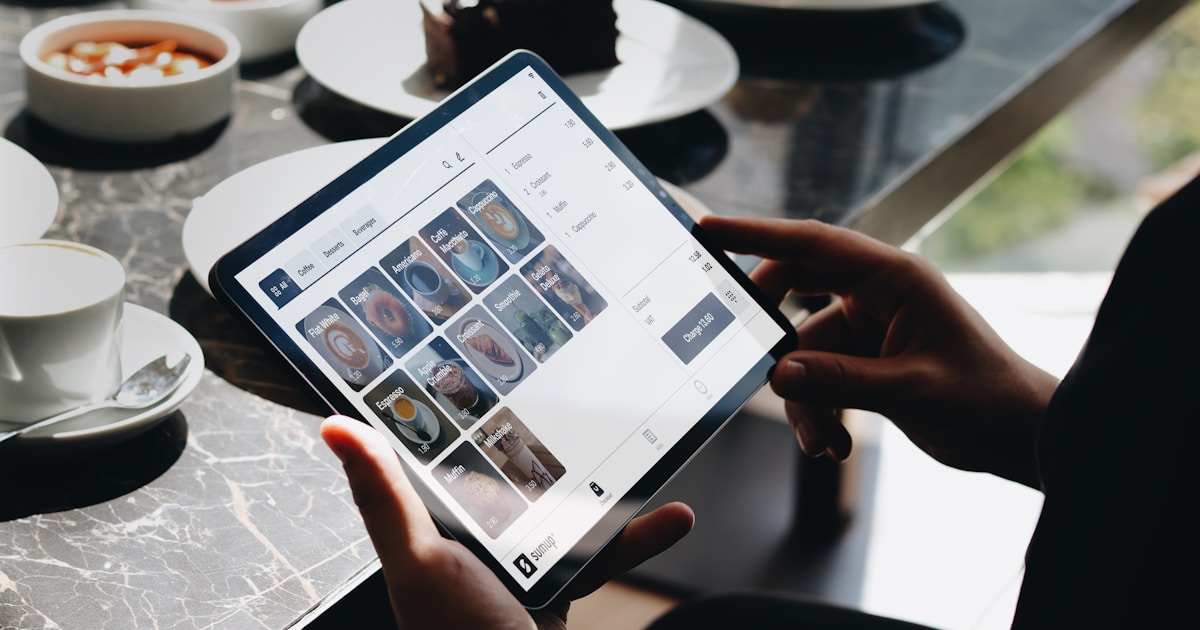
QR code menus have become essential for modern restaurants, offering contactless dining, instant updates, and significant cost savings. The best part? You can create a professional QR menu in just five minutes without spending a dime.
Why QR code menus Matter
digital menus can increase average order value, reduce printing costs, and speed up ordering. They allow you to update prices, add daily specials, or remove out-of-stock items instantly from anywhere, eliminating the need to reprint physical menus. QR menus also promote better hygiene by reducing contact with shared surfaces and can provide valuable data about customer ordering habits.
Tools You Need
- Your current menu in PDF, JPEG, PNG format, or a URL to your online menu
- High-quality photos of your signature dishes (optional but recommended)
- Your restaurant logo
- A smartphone to test the final QR code
Step-by-Step Creation Process
1. Choose a Free QR Code Generator
Select a free QR code menu generator that supports PDF uploads or direct menu URLs. Popular options include:
- Tools that let you upload a PDF menu and instantly generate a QR code
- Generators that integrate with ordering or payment systems
- Menu platforms that let you build an online menu and then create a QR code that links to it
Pick the one that best fits how you store your menu today (PDF vs online link).
2. Upload Your Menu Content
Once you’ve chosen a tool:
- Select the content type (usually “PDF” or “Website URL”).
- If you have a PDF menu, upload the file from your computer.
- If your menu is online, paste the full URL into the field provided.
- Confirm or save to generate your QR code automatically.
If the platform provides a menu builder, you can also recreate your menu there by adding categories (Starters, Mains, Desserts, Drinks) and listing items with names, descriptions, and prices.
3. Customize Your QR Code Design
To match the QR code with your restaurant branding:
- Change the color of the QR code dots and background to align with your brand colors.
- Add your logo to the center of the QR code if the generator allows it.
- Choose a frame style and add a short label such as “Scan to View Menu”.
Keep the code easy to scan by maintaining strong contrast (dark code on a light background) and avoiding overly complex designs.
4. Test Before Deployment
Before printing or sharing your QR code, test it carefully:
- Scan the code using different smartphones (Android and iOS).
- Check that it opens the correct menu page or PDF.
- Ensure text is readable and images load quickly on mobile.
- Verify that prices, item names, and descriptions are accurate.
Fix any issues in your menu or QR generator, then generate a fresh code if needed.
5. Download and Deploy
When everything looks good:
- Download the QR code in a high-quality format (SVG or PDF for print, PNG/JPG for digital use).
- Insert the code into table tents, stickers, or cards for each table.
- Add the QR code to posters at the entrance, counters, or windows.
- Include a short instruction like “Scan with your camera to view the menu”.
Place the codes where they are easy to see and scan without moving too many items on the table.
Design Best Practices
Optimize for Mobile Viewing
Since guests view QR menus on their phones, make sure your digital menu is mobile-friendly:
- Use clear headings for each category (e.g., “Starters”, “Mains”, “Drinks”).
- Keep descriptions short and easy to read.
- Ensure fonts are large enough on small screens.
- Avoid clutter; use spacing between items so the menu feels easy to skim.
Use Smart Menu Psychology
A few small tweaks can boost orders and revenue:
- Highlight your best-selling or most profitable items at the top of each category.
- Add short, benefit-focused descriptions to premium dishes.
- Use labels like “Chef’s Recommendation” or “Guest Favorite” to guide choices.
Include Essential Information
Make your QR menu clear and helpful by including:
- Prices for every item.
- Allergen and dietary icons (e.g., vegan, gluten-free, contains nuts).
- Spice level indicators where relevant.
- Portion details if portions are large, shareable, or for two people.
Common Mistakes to Avoid
- Using low-resolution images that appear blurry on mobile screens.
- Adding too many photos, which can slow down loading times.
- Choosing QR code colors with poor contrast, making them hard to scan.
- Placing QR codes where they are partially covered by plates or cutlery.
- Skipping testing on multiple devices before printing the code.
Keeping Your Menu Fresh
One of the biggest advantages of a QR code menu is how easy it is to update. When prices change, dishes sell out, or new seasonal specials appear, simply update the PDF or online menu your QR code links to. Guests will always see the latest version without you having to reprint anything.
With a few minutes of setup, you can have a free, flexible, and mobile-friendly QR code menu that improves your guest experience and saves your restaurant both time and money.