Bulk upload
Create dozens or hundreds of QR codes at once from a CSV spreadsheet.
Bulk upload is handy when you need many similar codes: one per table, per product, per branch. You fill in a spreadsheet, save it as CSV and upload it. ScanFence creates one code per row.
Bulk upload is switched on by the ScanFence team. If you don’t see Upload on the QR Codes page, ask us to enable it.
Step by step
- On the QR Codes page, click Upload.
- Click Download sample CSV → to get
qr-codes-bulk-template.csvwith example rows. - Open it in Excel, Numbers or Google Sheets and fill in one row per code. Keep the first row (the column names) as it is.
- Save or export as CSV.
- Back in the upload window, choose your file under Upload your CSV file. The upload starts as soon as you pick it.
- Upload results then shows how many codes were created and, if any rows failed, which ones and why.
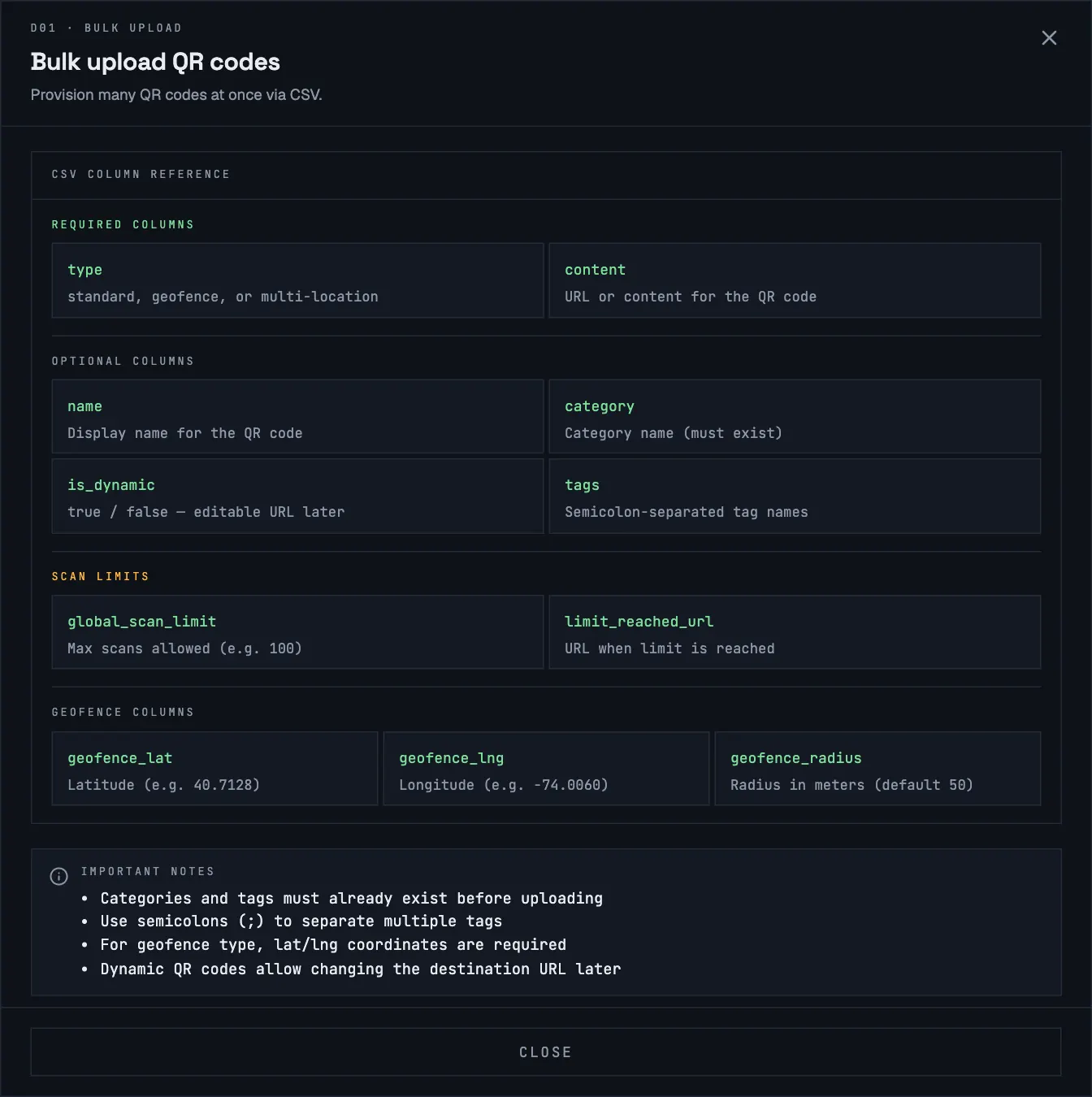
Columns
| Column | Required | What to put in |
|---|---|---|
type | Yes | standard or geofence |
content | Yes | The link or text. For dynamic codes, the destination. |
name | No | A display name, e.g. Table 12 |
category | No | The name of an existing category |
tags | No | Existing tag names, separated by ; |
is_dynamic | No | true to make the code dynamic, otherwise leave empty or false |
global_scan_limit | No | A number, e.g. 100. See Scan limits |
limit_reached_url | No | Where people go once the limit is reached |
geofence_lat | For geofence | Latitude, e.g. 48.2082 |
geofence_lng | For geofence | Longitude, e.g. 16.3738 |
geofence_radius | No | Radius in metres, 50 to 5,000. Default 50 |
Example
name,type,category,content,is_dynamic,global_scan_limit,limit_reached_url,geofence_lat,geofence_lng,geofence_radius,tags
Table 1,geofence,Menus,https://example.com/menu,true,,,48.2082,16.3738,60,tables;indoor
Launch offer,standard,Marketing,https://example.com/offer,true,100,https://example.com/sold-out,,,,promo
Tips
- Create categories and tags first. Names that don’t exist yet are skipped, and the code is created without them.
- Find coordinates by right-clicking a spot in Google Maps: the first entry in the menu is latitude, longitude.
- Multi-location codes can’t be set up by spreadsheet. Create them in the app. See Multi-location codes.
- Row errors name the row, for example Row 4: Missing required fields (type or content) or Row 7: Geofence type requires valid geofence_lat and geofence_lng. Fix those rows and upload just them again; the rows that worked are already created.
- Bulk-uploaded codes count towards your plan’s limit like any other code.