Time-based rules
Send scanners to a different page at certain times of day, on certain weekdays or during a date range, without reprinting the code.
A time-based rule gives a code a second destination that applies only while its conditions are met. Outside those times the code works as usual.
Examples
- A restaurant table code opens the lunch menu from 11:30 to 15:00 on weekdays and the regular menu otherwise.
- A poster links to the ticket shop until the event and to the photo gallery afterwards.
- A shop window code shows “we’re open, come in” during opening hours and the online shop at night.
Add a rule
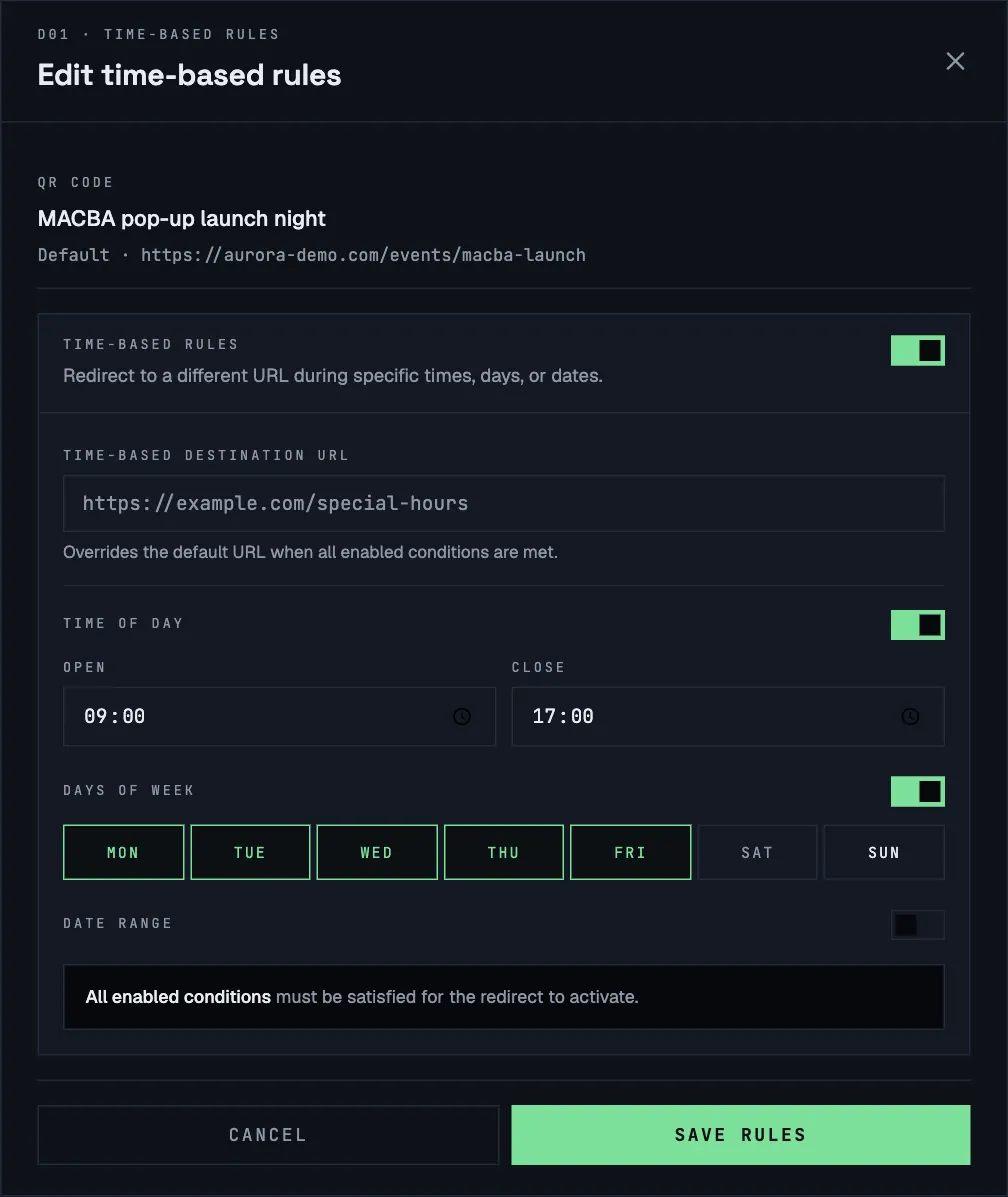
- On the code’s card, click Add time-based rules. You can also switch on Time-based rules while creating a code.
- Switch on Time-based rules.
- Enter the Time-based destination URL: where people go while the rule applies.
- Switch on the conditions you need:
- Time of day: an Open and Close time, for example 09:00 to 17:00.
- Days of week: click the days to include. Monday to Friday is preselected.
- Date range: a start and end date.
- Click Save rules.
How conditions combine
All switched-on conditions must be true at the same time. With Time of day 09:00–17:00 and Mon–Fri, the rule applies on weekdays during office hours, and not on Saturday at noon.
If you switch the rule on but no condition, it applies all the time.
Change or remove a rule
Click View time-based rules on the card to see the schedule, then edit it. To remove a rule, switch Time-based rules off and click Save rules.
Each code has one rule. For a code with several time windows, for example breakfast, lunch and dinner, use a multi-location code, which lets each location have its own schedule and priority.
Tips
- Rules need a dynamic code. Switching on a rule while creating a code makes it dynamic automatically.
- Test a new rule by scanning inside and outside its time window before you print.
- Compare rule and default traffic under Rule type distribution and Time-based rule performance on the Analytics page.