Team and roles
Invite colleagues into your workspace and decide what each of them may do.
Everyone you invite joins your workspace and works with the same codes and zones, within the limits of their role. Team members use your plan; they don’t need their own subscription.
Roles
| Role | Can do | Good for |
|---|---|---|
| Admin | Everything: all codes of all users, team management, analytics, settings. | Owners and team leads. |
| Manager | Create, edit and delete QR codes, view analytics, invite people. | Marketing, venue or campaign managers. |
| Field user | See and download codes and use them on site. Can’t create, change or delete codes. | Staff who only work with printed codes. |
Invite someone
- Open Team and click + Invite member.
- Enter their Email address.
- Choose a Role. The box underneath explains what it allows.
- Click Send invitation →.
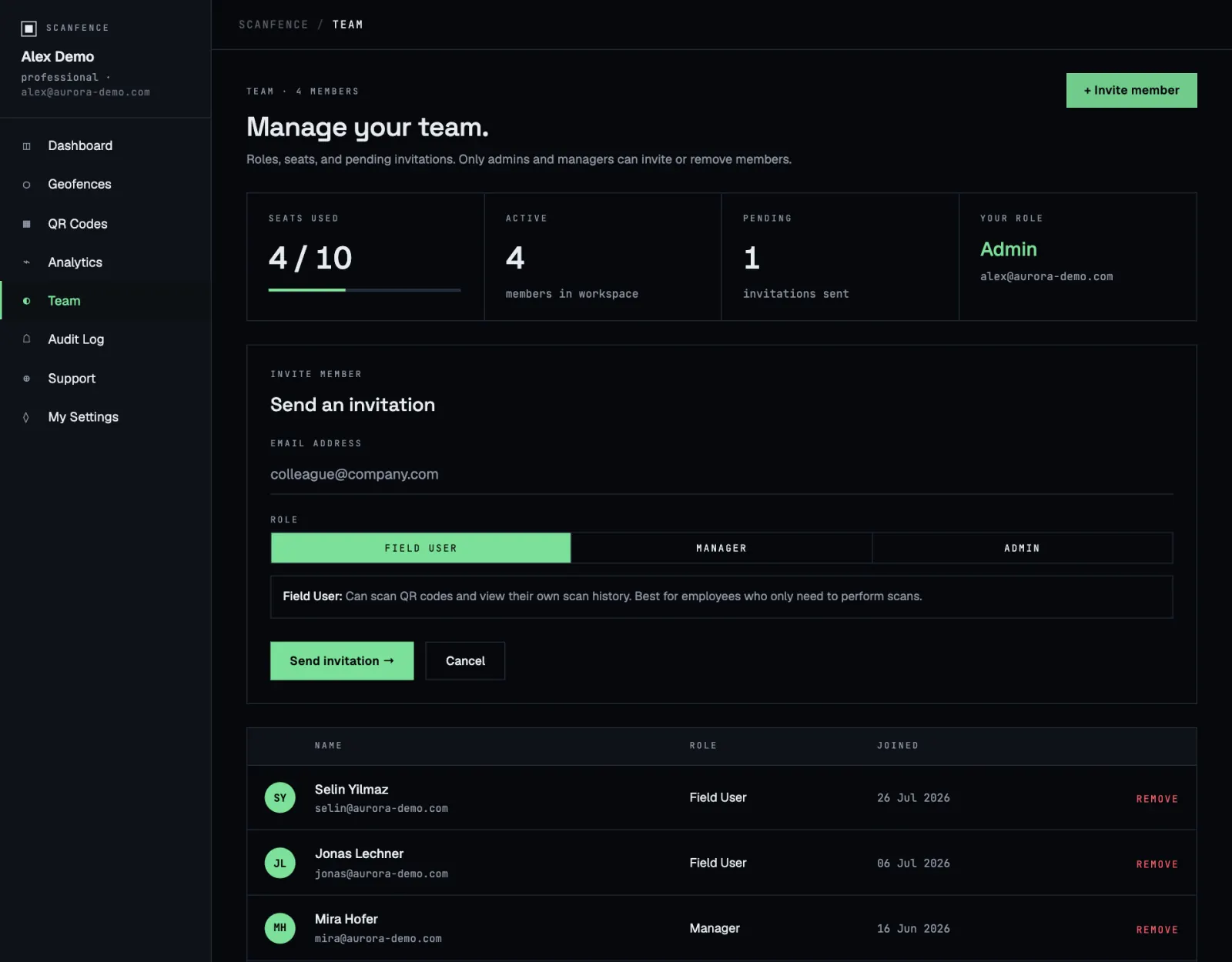
They get an email with a link. Invitations are valid for 7 days. Until then they’re listed under pending invitations, where you can cancel them.
Each plan has a number of seats, and you count as one. The Seats used tile shows how many are taken. When they’re all used, you’ll see Seat limit reached; remove someone or upgrade.
Remove someone
Click Remove next to the person and confirm. They lose access to the workspace immediately. You can’t remove yourself.
Joining a team
If someone invited you:
- Open the link in the invitation email.
- New to ScanFence? Choose Create account, enter your full name and a password, accept the terms and click Create account & join team →. Your email is already filled in from the invitation.
- Already have an account? Choose Sign in and click Sign in & join team →.
- If you’re already signed in, click Accept invitation →, or Decline.
Pending invitations also show on your dashboard with a Review button.
“This invitation was sent to a different email address” means you’re signed in with another account. Sign out, then open the link again.
“Invitation not found or has expired” means the 7 days are over or the invitation was cancelled. Ask for a new one.