Multi-location codes
One printed code, up to ten places, each with its own destination, schedule and scan limit.
A multi-location code checks where the scanner is and sends them to the page of the zone they’re standing in. If they’re in several zones at once, the nearest one wins. Anyone outside all zones goes to the fallback URL.
Example: a chain prints the same table tent for all its cafés. In each café the code opens that café’s menu; at home it opens the chain’s website.
Create one
- On QR Codes, click + Generate QR and choose Multi-location.
- Enter the Fallback URL (Default): where people go when they aren’t at any of your locations, or don’t share their location.
- Click Add location and fill in:
- Label/Name, e.g. Café Old Town
- Search by address, or Latitude and Longitude
- Radius (meters)
- Destination URL for this place
- Repeat for up to 10 locations. Incomplete entries are marked (incomplete) until every field is filled.
- Click Generate QR →.
Per-location extras
Each location can have its own:
- Time-based schedule with Time of day, Days of week and Date range, plus a Priority from 1 to 10. Use it when a place should only count during its opening hours.
- Scarcity limit: the first N scans at this location get its page; everyone after that gets the location’s own Fallback URL (when limit reached).
Edit locations and see their numbers
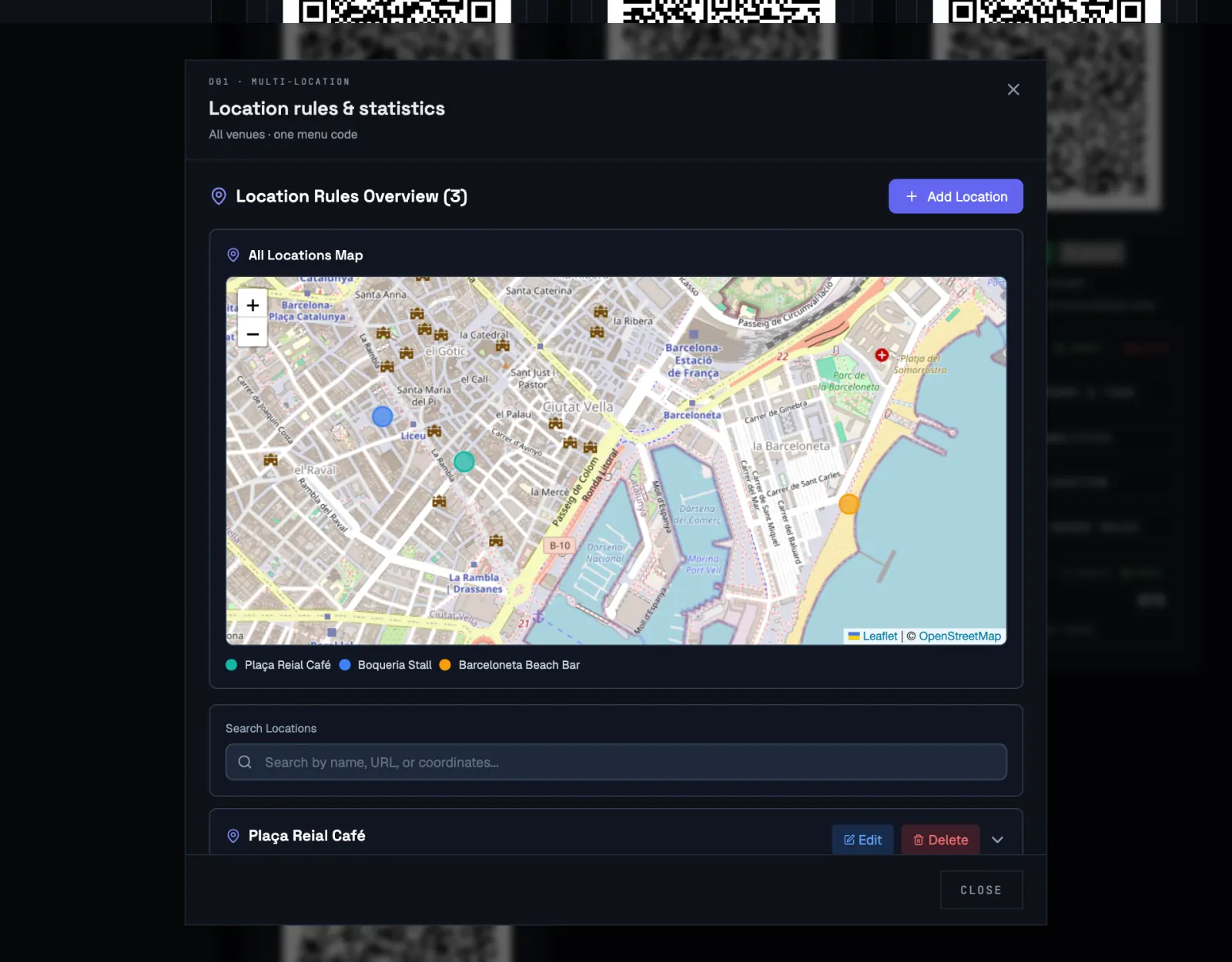
On the code’s card, click Edit locations & stats. The Location rules & statistics window shows all zones on one map, with a colour per location. Below the map you can search the list, add, edit or delete locations, and see each one’s scan statistics, maximum scans and time rules.
Tips
- Keep zones from overlapping where you can. Where they do overlap, the nearest centre wins.
- A multi-location code counts as one code towards your plan, however many locations it has.
- Multi-location codes always go through ScanFence, so you can edit every location later without reprinting.