Quick start
Create your account, make your first dynamic QR code and test it on your phone. It takes about five minutes.
1. Create your account
- Go to app.scanfence.com/signup.
- Pick a plan: Basic, Starter or Professional. Switch between Monthly and Annual billing at the top; annual saves about 17 %. Every plan starts with a 30-day free trial. See Plans and limits if you’re unsure which to take.
- Enter your work email and a password (at least 6 characters), confirm it, and accept the Privacy Policy and Terms.
- Have a voucher? Enter it in Voucher code before you continue.
- Click Create account & subscribe. You’re taken to our payment provider to enter your card, then back to the app.
If you’re asked to confirm your email first, click the link in the email and sign in. Checkout carries on where you left off.
2. Create your first code
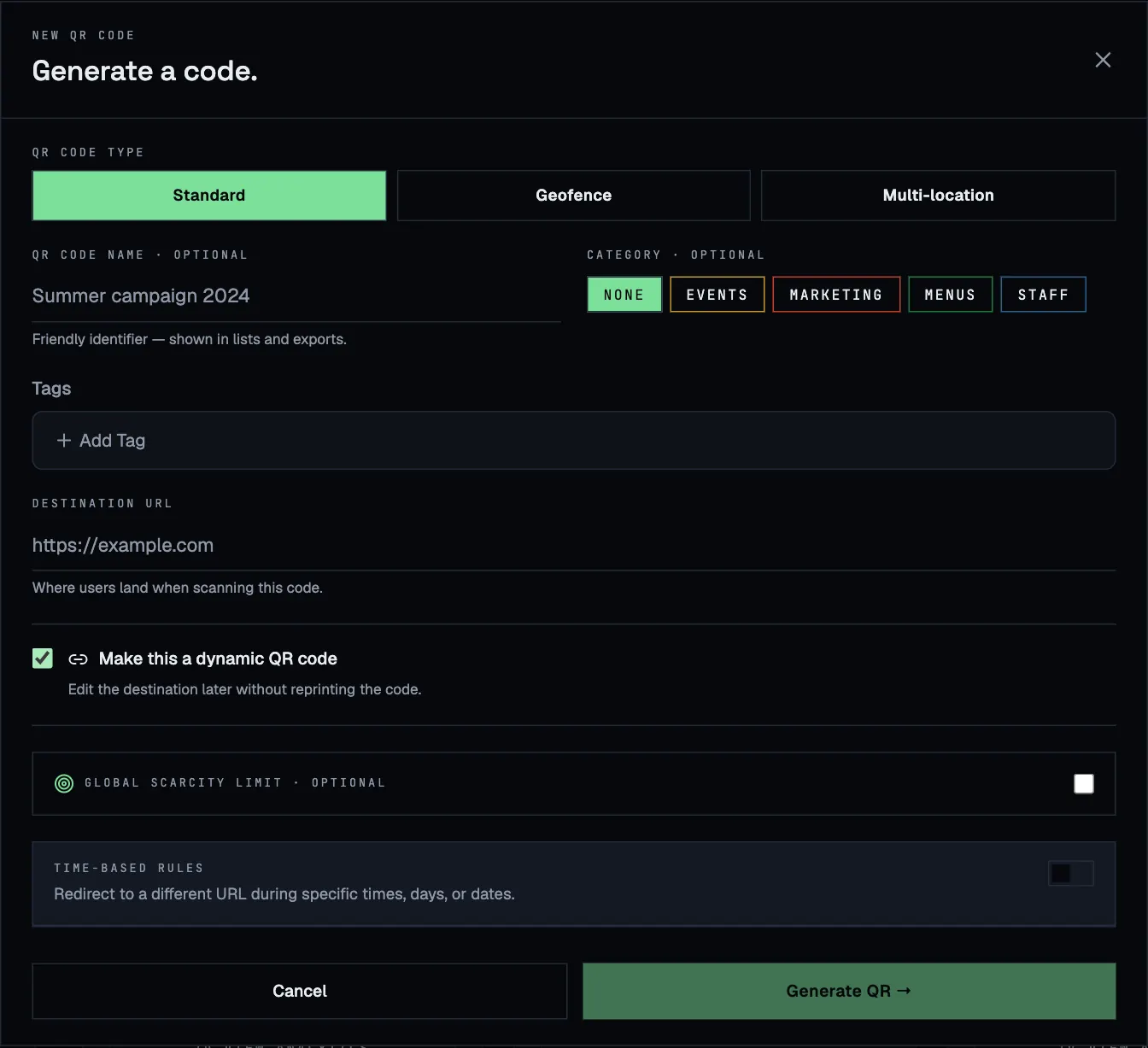
- In the menu, open QR Codes and click + Generate QR.
- Leave the type on Standard.
- Give the code a name, for example Window poster. Names show up in lists, analytics and exports.
- Enter the web address people should land on in URL or text.
- Tick Make this a dynamic QR code. You can then change the address later without reprinting.
- Click Generate QR →.
3. Test and download it
- Your new code appears as a card at the top of the list. Point your phone’s camera at the screen: it should open your address.
- Click PNG for a picture you can drop into documents, or SVG for print. SVG stays sharp at any size, so send that one to your printer.
- After a few scans, the card’s Scans & limits box counts them and View analytics shows where they came from.
Where to go next
- Only let the code work at your venue: Geofences.
- Show a different page at night or on weekends: Time-based rules.
- Give away the first 100 vouchers only: Scan limits.
- Bring colleagues in: Team and roles.