Create a QR code
The three code types, static versus dynamic, and every field in the "Generate a code" window.
Open QR Codes in the menu and click + Generate QR. The Generate a code window opens. Generate QR → stays greyed out until everything the chosen type needs is filled in.
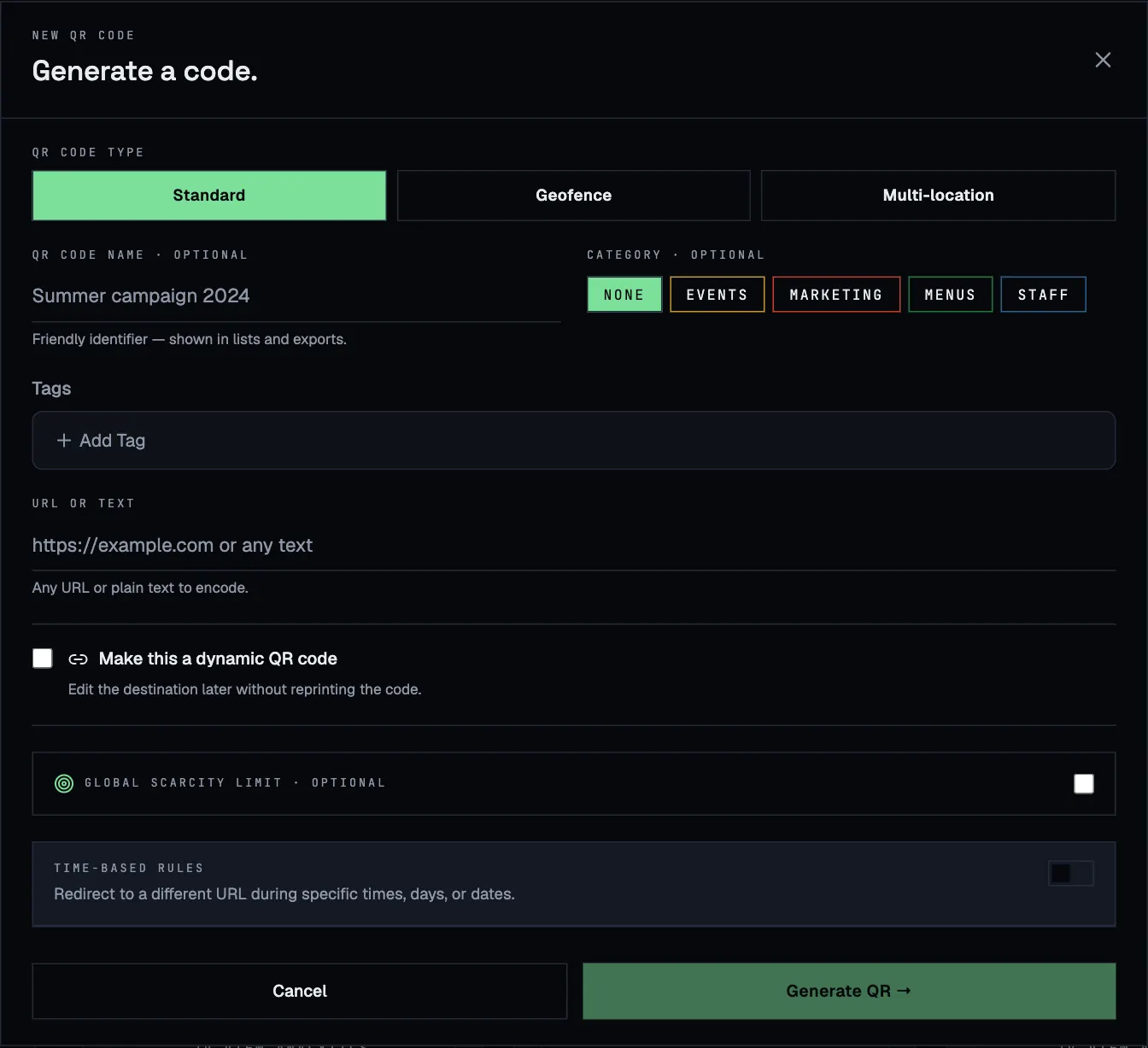
Choose a type
| Type | Use it when | Scanners get |
|---|---|---|
| Standard | Everyone, everywhere should get the same thing. | Your link or text. |
| Geofence | The code should only work at one place: a check-in point, a table, a store. | Access if they stand inside your zone; a “you’re outside” screen otherwise. |
| Multi-location | One printed design is used at several places, and each place should open its own page. | The page of the nearest zone they stand in, or a fallback page. |
Fields for every type
- QR code name (optional). A friendly name such as Summer campaign 2026. It’s shown in lists, analytics and exports, so it’s worth setting.
- Category (optional). One colour-coded category per code, for example Menus or Events. You can filter the code list by it. Manage categories from Filters → Manage categories on the QR Codes page.
- Tags (optional). As many as you like. Pick an existing tag with Add tag, or choose Create new tag to add one on the spot.
Standard codes
Enter a web address or any plain text in URL or text. Text works too: the phone simply shows it.
Geofence codes
A geofence code asks the scanner’s phone for its location and only lets them through inside the zone.
- Enter a Geofence name, such as Main entrance.
- Type an address into Search by address and click Search, or enter Latitude and Longitude yourself. A map preview appears once the position is set.
- Set the Radius (meters). Use at least 50 m: phone GPS is rarely more precise than that, especially indoors.
- Enter what people who pass the check should get in URL or text · inside fence.
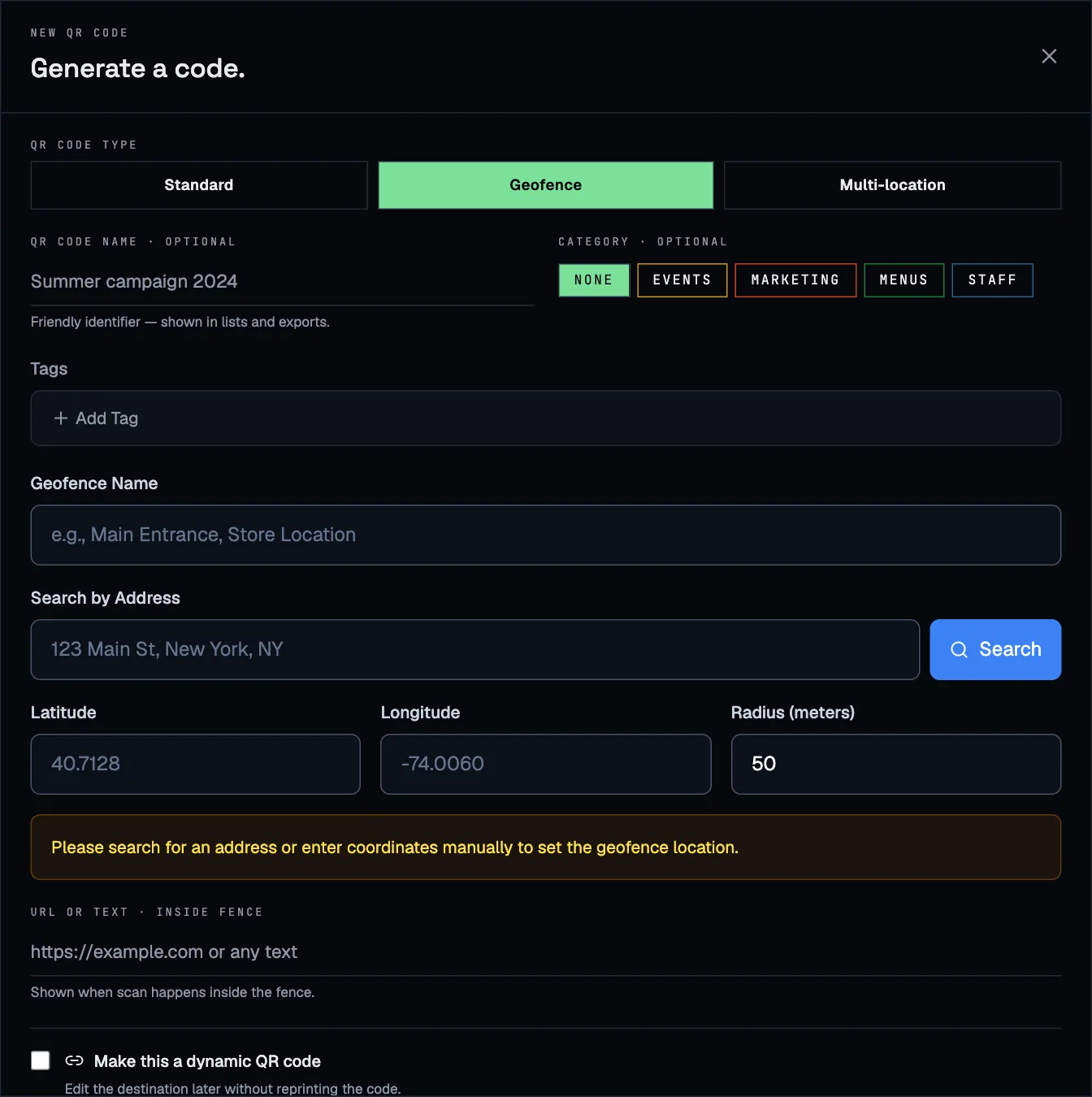
Each geofence code creates its own new zone, which then also appears on the Geofences page. There you can move it or change its radius later. See Geofences.
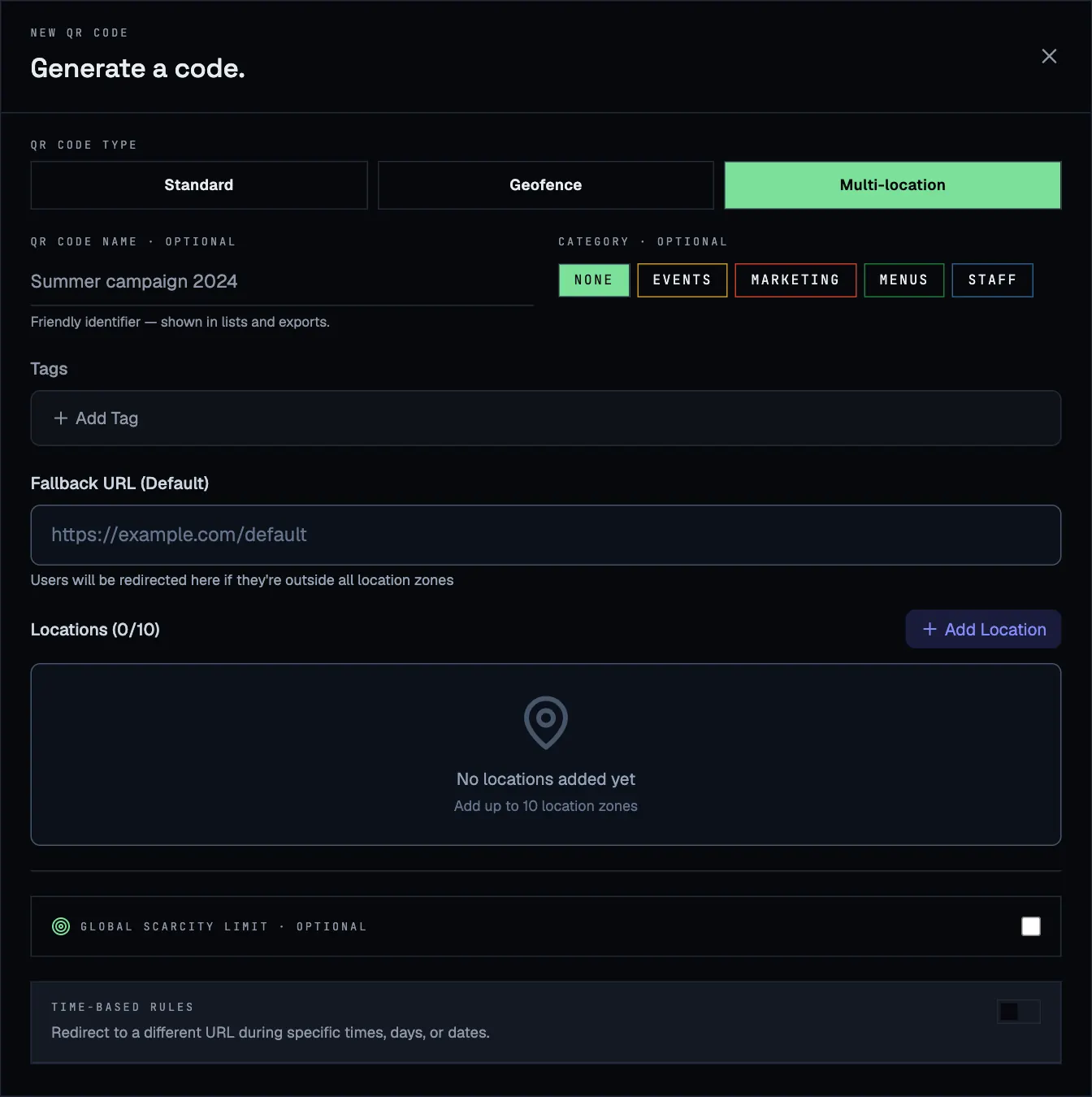
Multi-location codes
Set a Fallback URL for everyone outside all zones, then click Add location for each place (up to 10). Each location has its own address, radius and destination, and optionally its own schedule and scan limit. This type has its own page: Multi-location codes.
Static or dynamic
Tick Make this a dynamic QR code to make a code dynamic. The field above it then reads Destination URL.
| Static | Dynamic | |
|---|---|---|
| What’s inside the printed code | Your link itself | A short ScanFence link that forwards the scanner |
| Change the destination later | No, you’d have to reprint | Yes, any time |
| Scans counted and shown in analytics | No (standard codes) | Yes |
| Time-based rules and scan limits | No (standard codes) | Yes |
| Switch the code off | No (standard codes) | Yes |
Rule of thumb: if the code goes on anything printed, make it dynamic. Static codes are fine for things that never change, like your Wi-Fi password.
Switching on time-based rules in this window makes the code dynamic automatically. Multi-location codes always go through ScanFence, so they don’t show the option.
Optional extras
Two sections at the bottom of the window can be set now or later from the code’s card:
- Global scarcity limit: stop after a number of scans and send everyone after that to another page. See Scan limits.
- Time-based rules: a different destination at certain times, days or dates. See Time-based rules.
If something’s missing
The window tells you what it needs, for example Please enter URL or text, Please complete all geofence location fields or Please add at least one location. If it says QR code limit reached, you’ve used all the codes in your plan. Move codes you no longer need to the trash, or upgrade.