Manage your codes
Find, download, edit, switch off and delete your QR codes, and keep them organised with categories and tags.
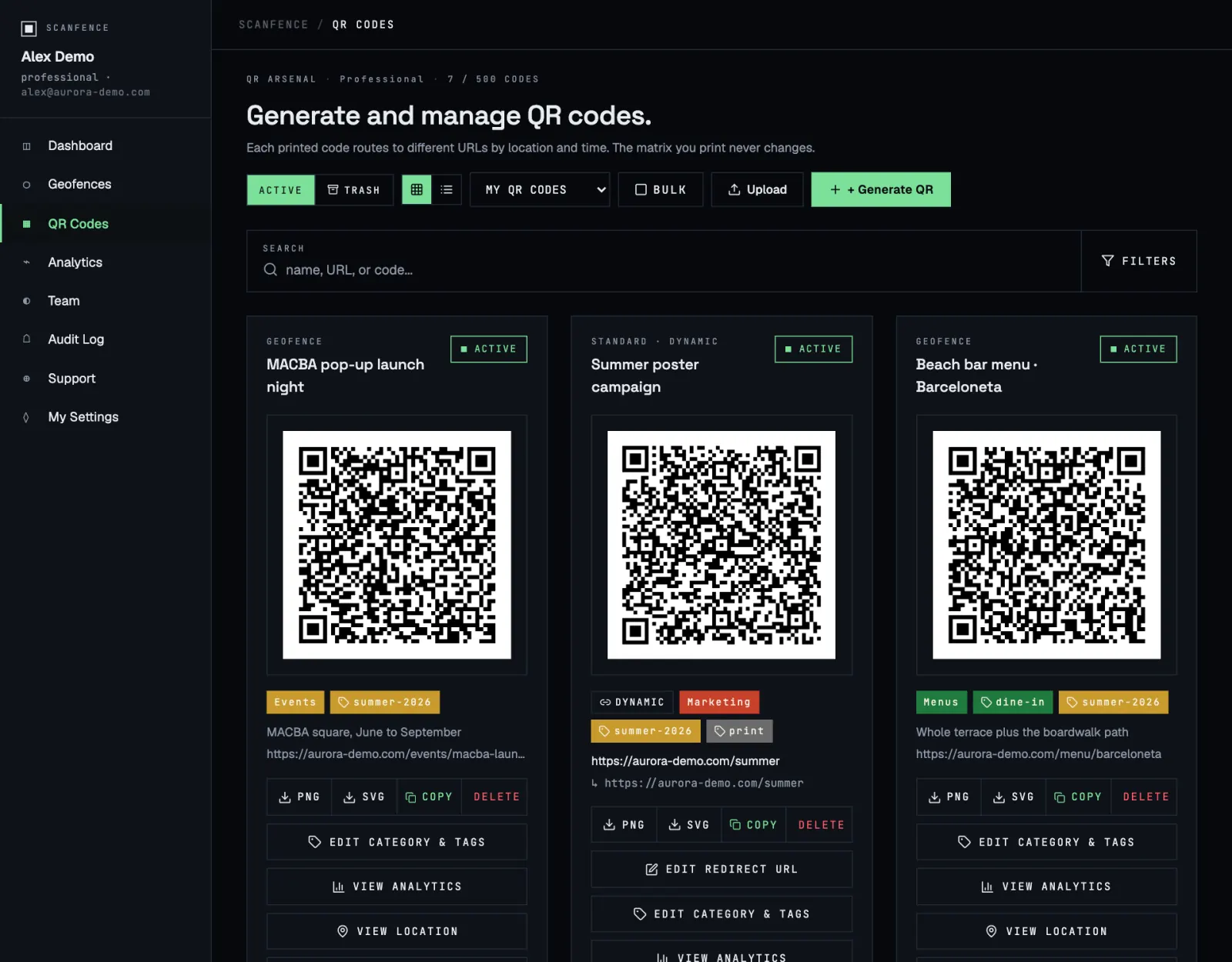
The toolbar
- Active / Trash switches between your live codes and the ones you deleted.
- Grid / List changes the layout. Your browser remembers the choice.
- My QR codes / All users (admins only) shows your own codes, everyone’s, or one colleague’s.
- Bulk lets you tick several codes and move them to the trash in one go.
- Upload imports many codes from a spreadsheet, if bulk upload is enabled for your account. See Bulk upload.
- + Generate QR creates a new code. See Create a QR code.
Search and filter
The search box finds codes by name, link, fallback link, geofence name or limit link. Click Filters to narrow the list by category or tags. With several tags selected, codes with any of them are shown. Clear all filters resets everything.
A code’s card
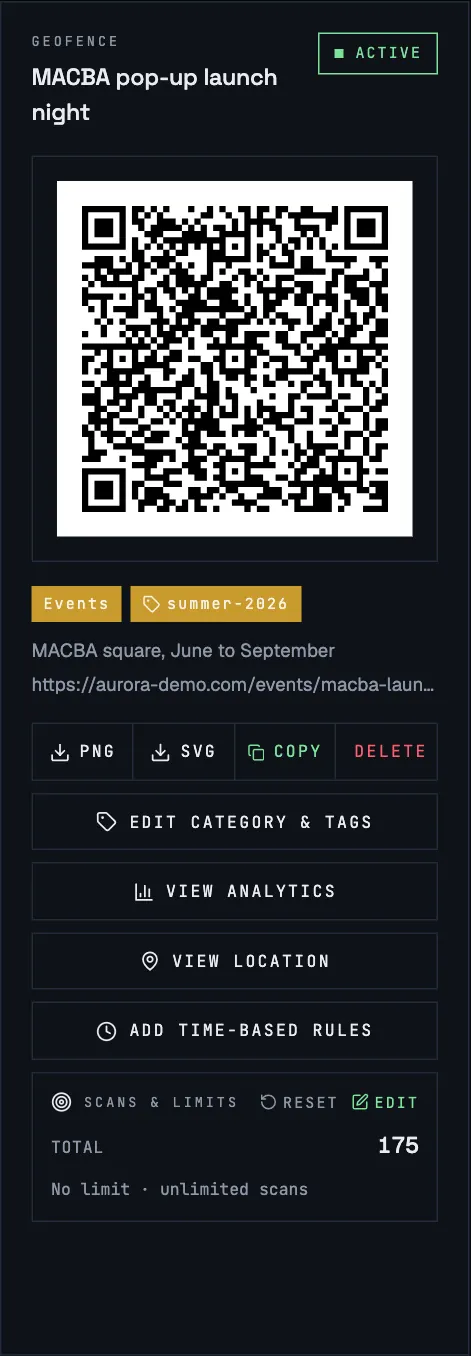
From top to bottom:
- Type and name, for example Geofence or Standard · Dynamic.
- Active / Inactive switch. Click it to switch a dynamic code off, for instance at the end of a campaign. Inactive codes stop working until you switch them back on.
- The QR image, followed by category, tags and the destination.
- PNG and SVG download the image. Use SVG for print: it stays sharp at any size. PNG suits slides and documents.
- Copy copies the link the code contains, handy for testing on a computer.
- Delete moves the code to the trash.
- Edit category & tags re-files the code.
- Edit redirect URL (dynamic codes) changes where the code leads. The change applies from the next scan and the printed code stays the same.
- View analytics opens this code’s scans: totals, a map, the latest 100 scans, and CSV or PDF export.
- View location (geofence codes) shows the zone on a map.
- Edit locations & stats (multi-location codes) opens the location editor.
- Add time-based rules / View time-based rules. See Time-based rules.
- Scans & limits shows the scan count and any limit. See Scan limits.
List view
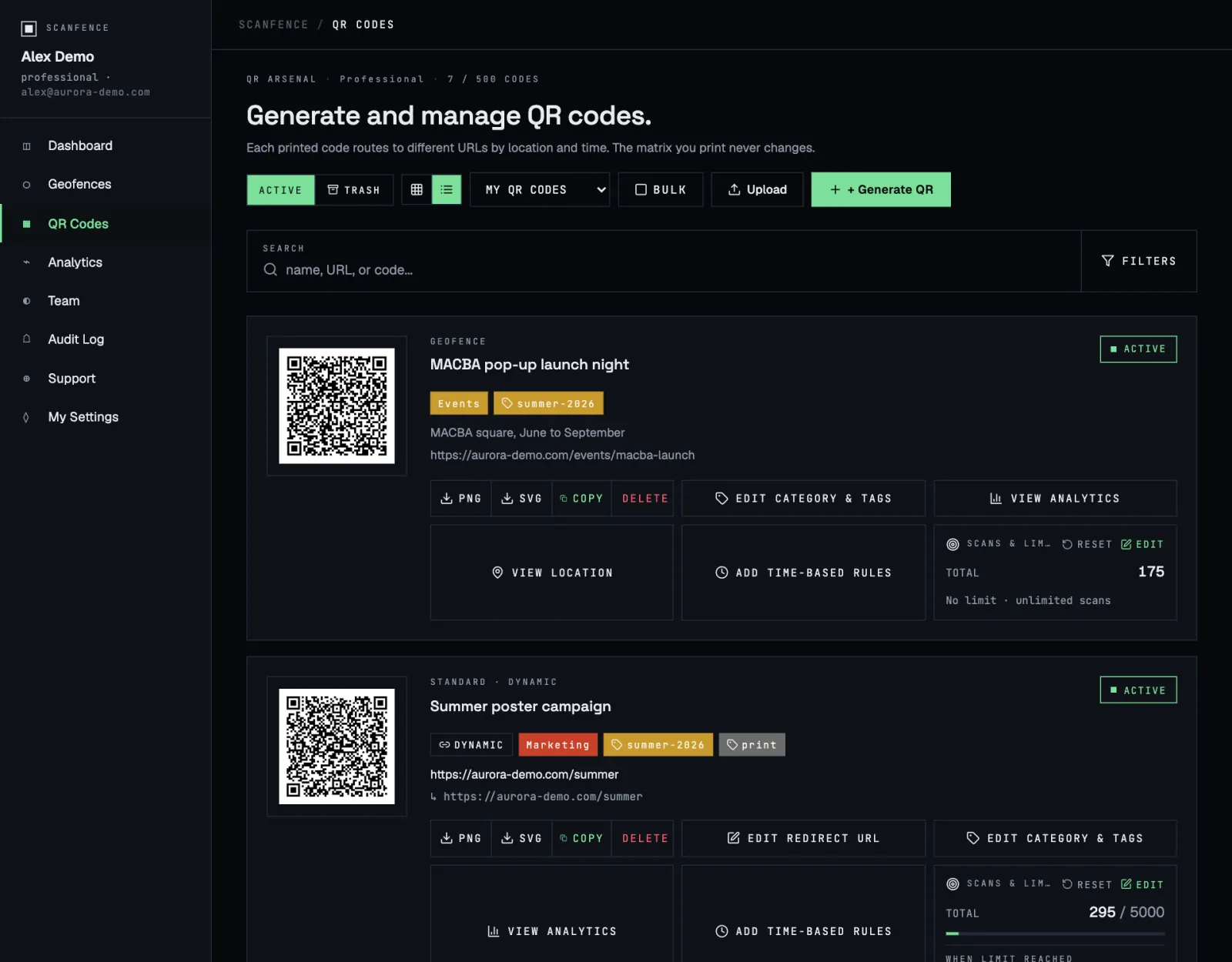
List view packs more codes on the screen, with the same actions in a compact row. It suits long lists and bulk selection.
Categories and tags
Use categories for the main grouping (one per code, with a colour) and tags for everything else (as many as you like).
- Categories: Filters → Manage categories. Create, rename, recolour or delete. Deleting a category removes it from all codes but keeps the codes.
- Tags: My Settings → Tags, or create them while making a code.
Trash and restore
Delete doesn’t remove a code for good; it moves it to the Trash. A code in the trash stops working straight away, so people scanning it get an error instead of your page.
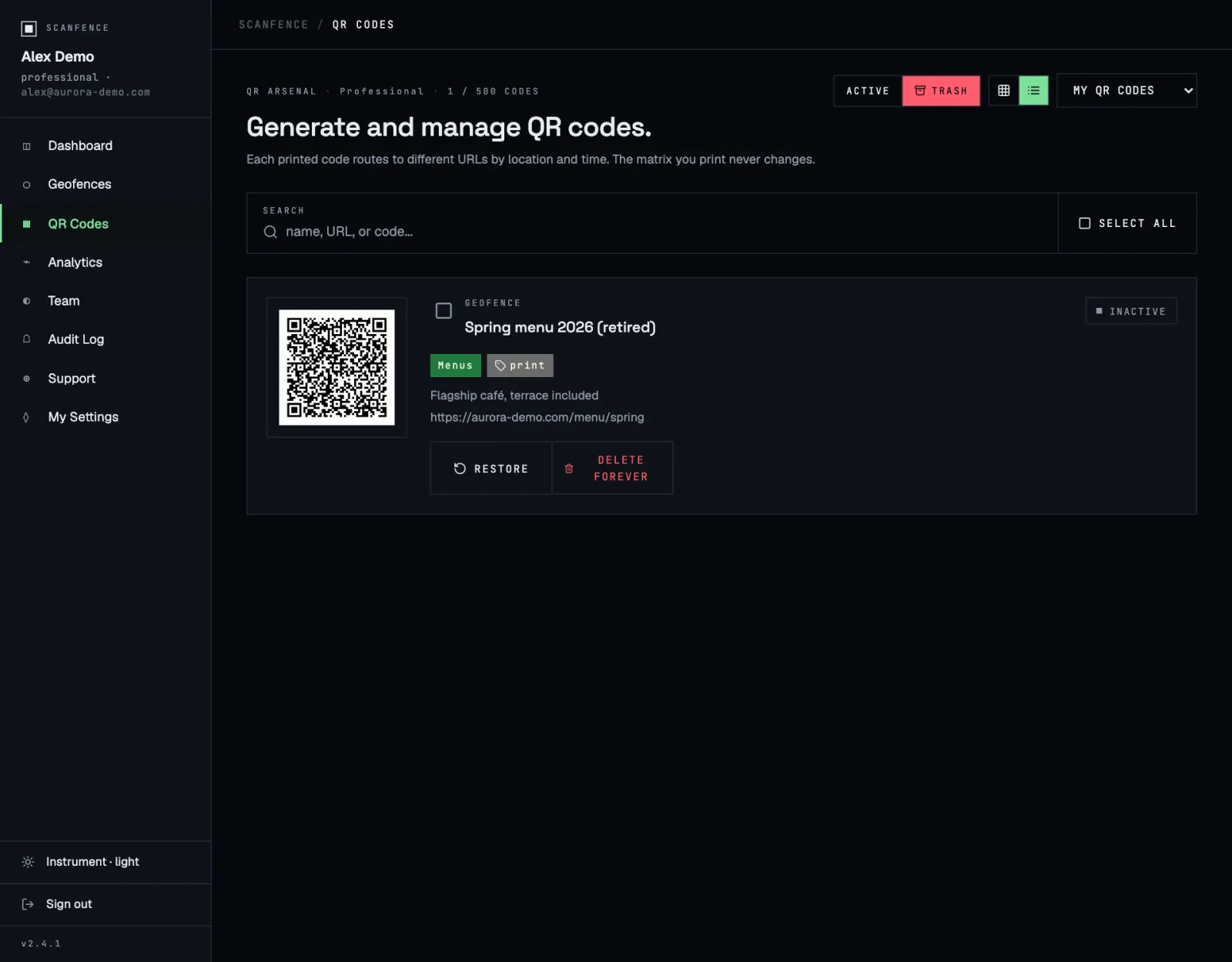
In the trash you can:
- Restore a code. It comes back with all its settings and starts working again.
- Delete forever a code. This can’t be undone.
- Select several codes and restore or delete them together.
Codes in the trash don’t count towards your plan’s limit.