Geofences
Draw a zone on the map so your QR codes only work for people who are actually there.
A geofence is a circle on the map: a centre point and a radius between 50 m and 5,000 m. When someone scans a code linked to a geofence, their phone reports where it is, and ScanFence checks whether that point lies inside the circle.
Typical uses: check-ins that only count on site, table ordering that only works in the restaurant, event content only for people at the venue, staff attendance at a work site.
The Geofences page
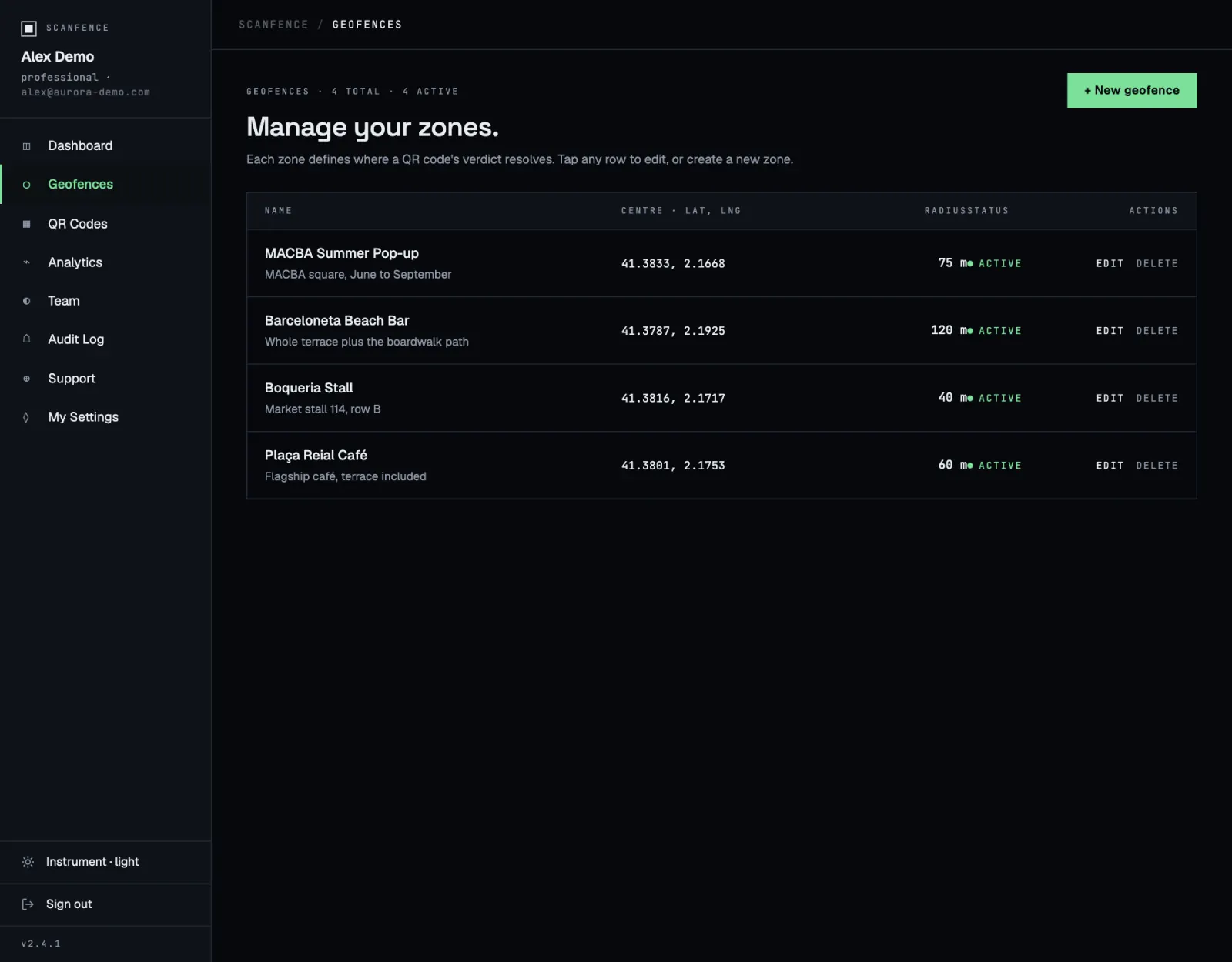
For each zone the table shows its name and description, the centre coordinates, the radius and the status.
- Click Active / Inactive to switch a zone on or off.
- Edit opens the zone to move it or change its size.
- Delete removes the zone for good.
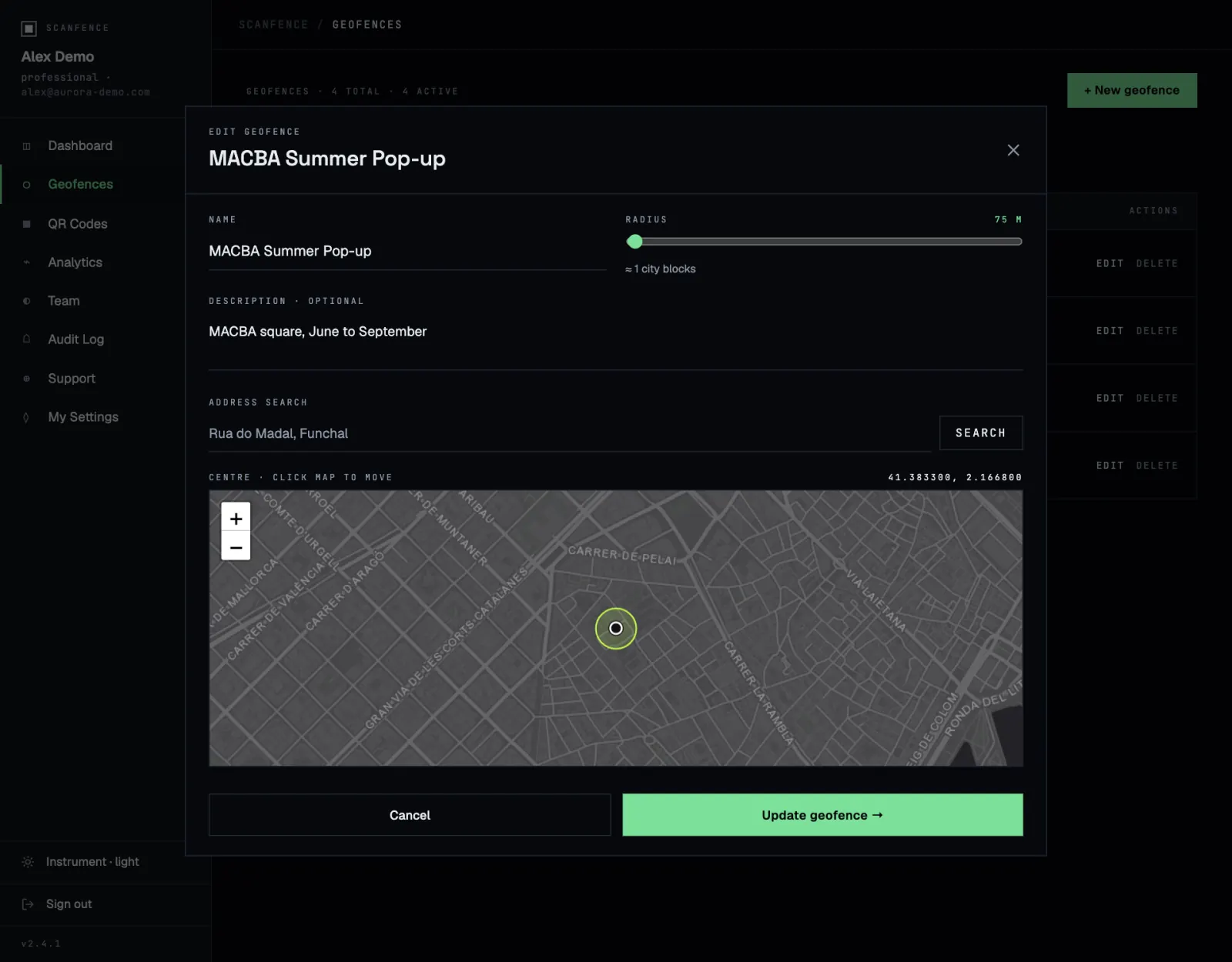
Create or edit a zone
- Click + New geofence, or Edit on an existing zone.
- Enter a Name and, if you like, a Description, such as Loading bay 1–4.
- Type an address into Address search and click Search. The map jumps there.
- Fine-tune the centre by clicking the map. The coordinates above the map update as you click.
- Drag the Radius slider. The hint underneath translates metres into city blocks.
- Click Create geofence → or Update geofence →.
Choosing the right radius
Phones don’t know their position exactly. Outdoors, GPS is usually accurate to 5–20 m; indoors, in dense city centres or underground it can be 50 m or worse. Pick a radius that covers the place plus that uncertainty.
| Place | Suggested radius |
|---|---|
| A single shop, café or stand | 50–100 m |
| A venue, hotel, office building | 100–250 m |
| A festival ground, campus, resort | 250–1,000 m |
| A district or small town | 1,000–5,000 m |
Test on site. Before printing, scan the code at the edges of the place, ideally indoors too. If people inside are refused, make the radius bigger.
Linking a code to a zone
Zones are created together with codes: choose the Geofence type in the Generate a code window and fill in its location fields. See Create a QR code. The new zone then also appears on the Geofences page, where you can adjust it later without reprinting.
Want one code that works at several places, each with its own page? Use a multi-location code.
Privacy
The location is only requested at the moment of scanning, and only for codes that need it. Scanners see their phone’s usual permission prompt and can decline. Their position is used for the check and may be saved with the scan for your analytics; ScanFence doesn’t track anyone before or after the scan.